How to use Fabel
Fabel helps you work with video and audio by editing the spoken words. Upload a file, search and select the useful sections of the transcript then export your selections as a new media file, a timecoded script or send them to your editing software.
1. Upload a file
Choose Upload and select a video or audio file from your computer or phone. Fabel will upload the file, prepare it for playback and create a transcript. This may take a few minutes depending on the length of the recording. You can leave the page while your file is being processed and return later. If the server is busy your upload will be held in a queue until a slot becomes free.
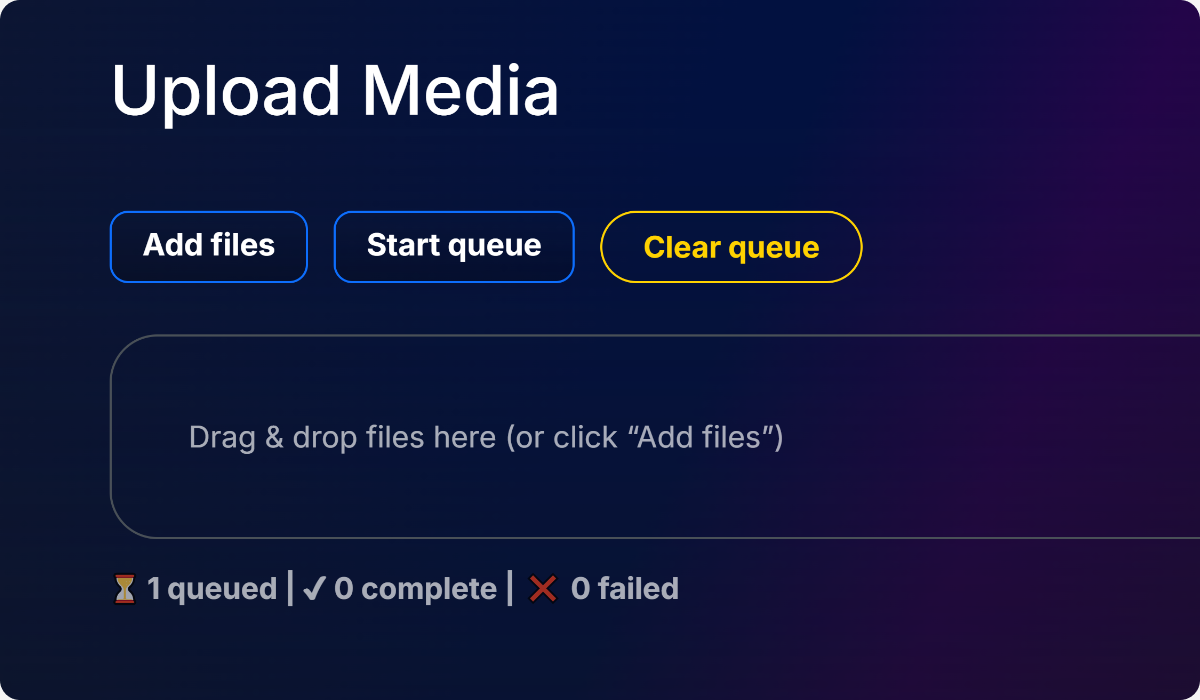
Once the clip has finished processing it will appear in your Clips Library.
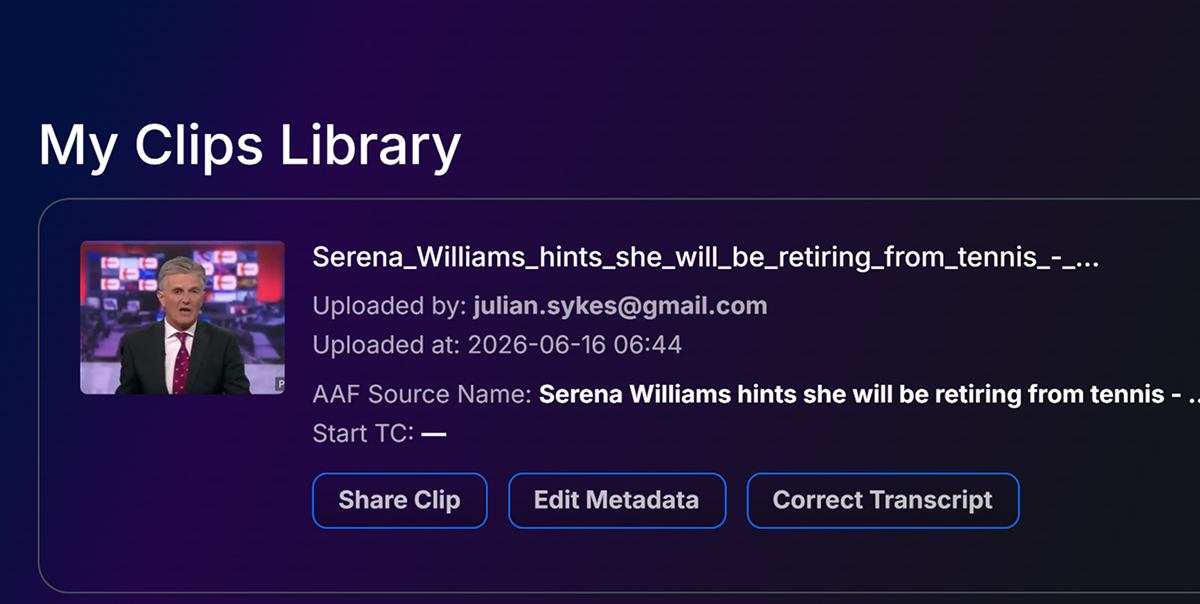
2. Open the transcript
Use the search box to quickly find a word or phrase within the transcript. Leaving the cursor over each word will reveal the timecode of that word in the recording.
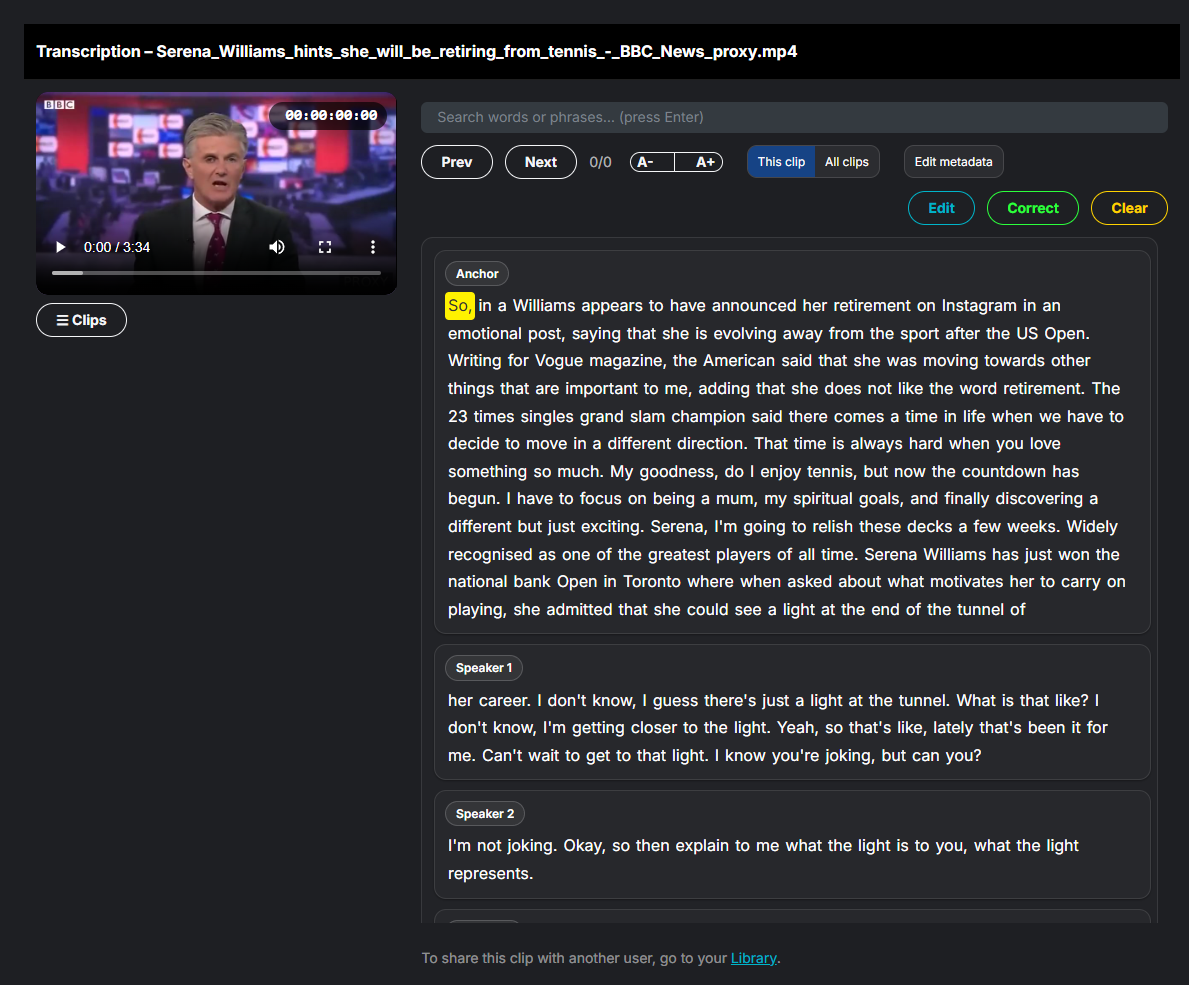
3. Select the sections you want to use
4. Optional - Correct the transcript
The software attempts to identify different speakers. Depending on the quality of the recording and the uniqueness of each voice it can make occasional mistakes which is normal. Choose correct and you will be taken to a set of tools that allows you to correct when each speaker starts speaking and the next speaker ends. You can also name the speakers. (This option is only available on desktop / laptop computers).
Correcting the text does not alter the original recording. It simply makes the transcript easier to search and use.
5. Build a sequence
Either select edit in the clip viewer where your clip will be loaded into the editor or choose edit from the top menu and then choose the clip you want to build from the left Clips menu.
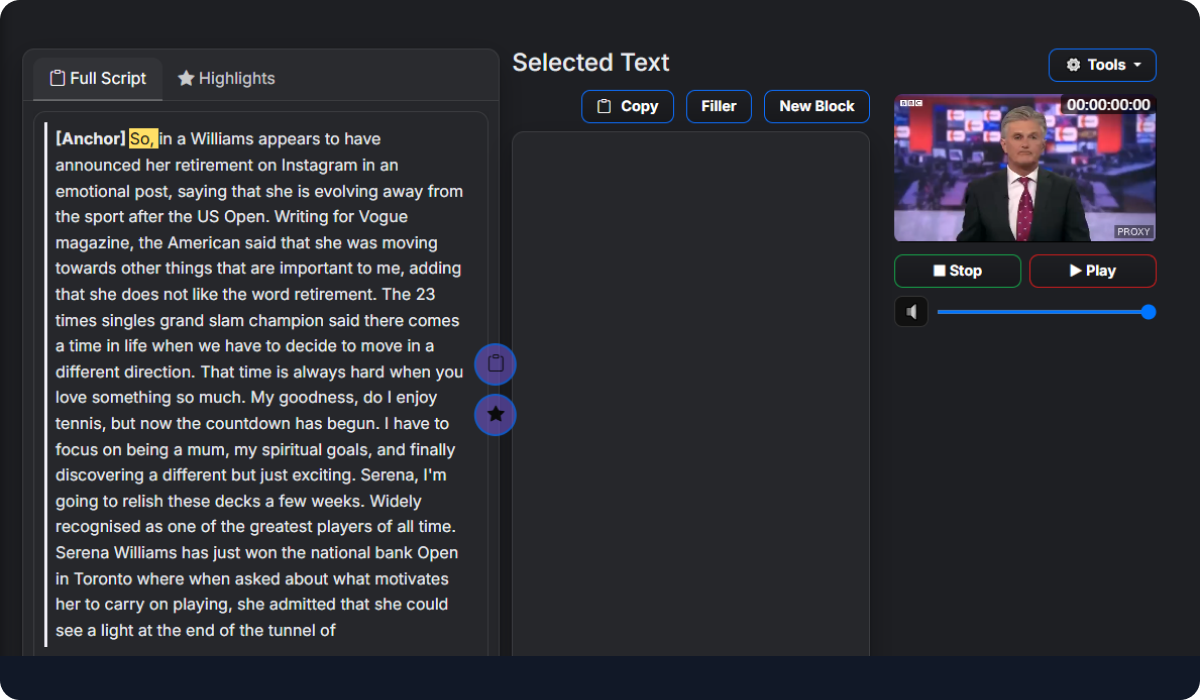
You can:
- reorder clips by dragging them
- play individual sections
- add filler between clips (default in 1 sec)
- make small timing adjustments
- Add manual notes (not visible on media export)
- Fabel always keeps your original uploaded file unchanged.
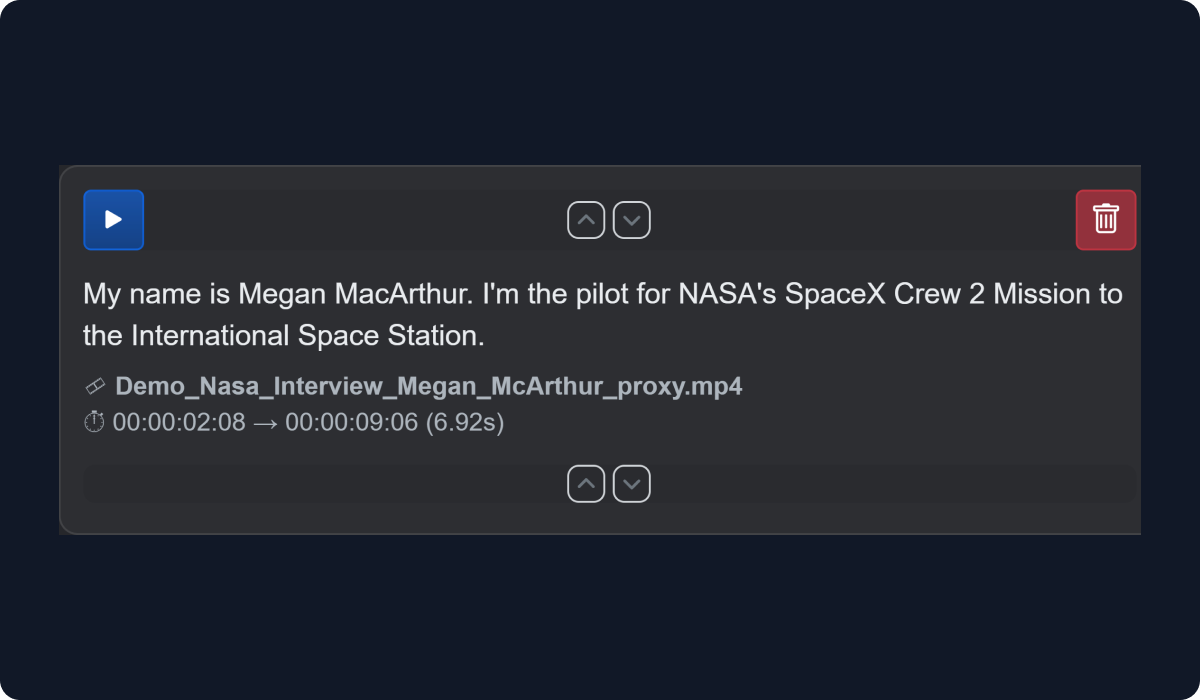
Text that you have already highlighted in the clip viewer is stored in the highlights tab. Press the star icon to copy the selections into you editor.
You can make adjustment to the start and end of each block of text by pressing the up and down trim arrows at the top and bottom of each block of text.
6. Export your work
When you are happy with your selections, choose the export format that suits your workflow.
Export as MP4
Creates a new video file containing your selected sections.
Export as WAV
Creates an audio-only version of your selected sections.
Export as AAF
Creates a file that can be imported into professional editing software, such as Avid Media Composer or Adobe Premiere. This is useful when you want to continue editing elsewhere. Read more about this workflow in section 8.
7. Find material across your library
Use the search tools to look for a word or phrase across each transcript or all of them.
A few useful things to know
Your original uploads are not changed when you edit or export.
Exports are the same quality as the original upload.
Transcript correction and detailed sequence editing work best on a desktop or laptop.
You can return to your library and projects later.
If an upload is still processing, you can continue using other parts of Fabel.
Need help?
Use the help option in Fabel to send a message if something is not working or you are unsure what to do next.
Fabel can export AAF's. This is useful if you are working with an NLE such as AVID Media Composer or Adobe Premiere. Note: It only creates AAF;s without embedded media and assumers you will have matching media on the NLE.
8. Working with an edit - Advanced
For the smoothest AAF workflow:
- Export the source clip from your editor as an .mp4.
- Import the clip into Fabel.
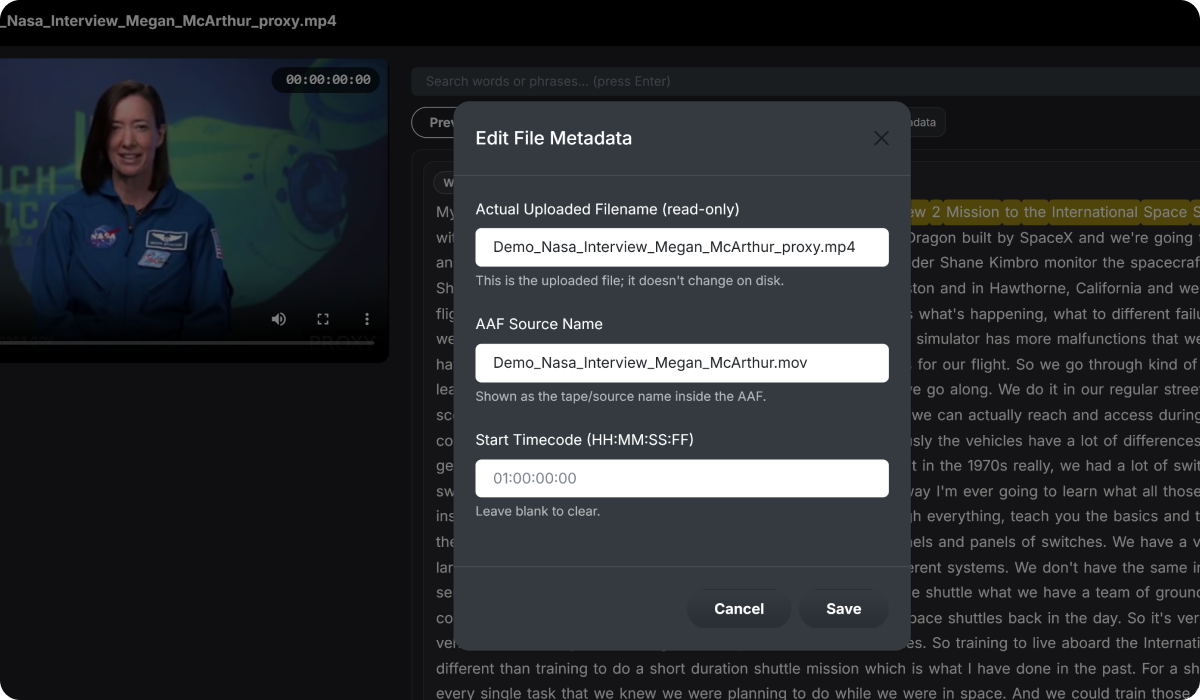
- Edit the metadata so it's timecode matches the start timecode of the original clip and has the same name.
- Fabel can also import an aaf which will appear in the Scripts Library. From there you can load it into the editor.
8. Need Help?
If you need help you can send an email in the Help menu or email help@fabel.tv